Conditional Formatting
Conditional formatting allows you to provide different formatting of a cell (or rows for Text Views) depending on the values found in a numeric column. For instance, values in the lower 50% range of a grid can be colored with a red adorner to signal very low values.
 The conditional formatting configuration allows you to establish styling
rules per ranges of data or based on common comparison operators.
The conditional formatting configuration allows you to establish styling
rules per ranges of data or based on common comparison operators.

Enabling Conditional Formatting
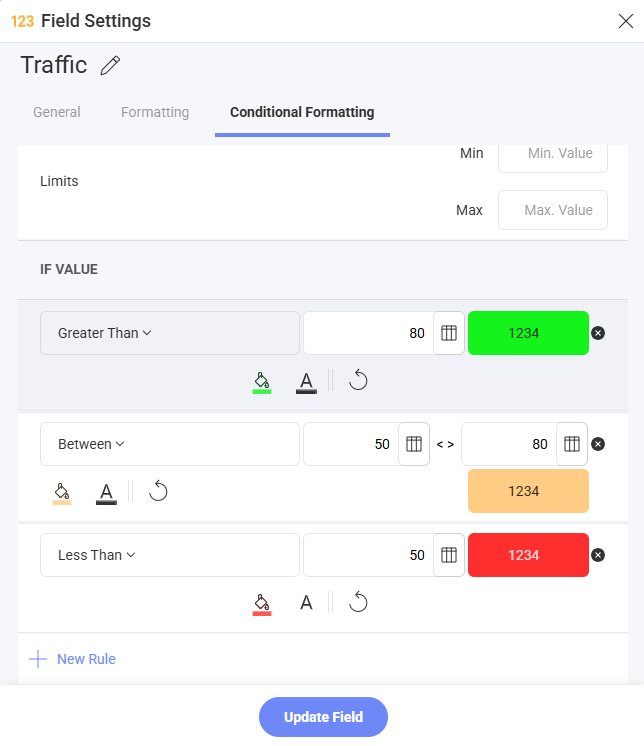
To enable conditional formatting on a numeric column, select field in the Data Editor to prompt the Field Settings dialog. The conditional formatting configuration is the last option in the settings, and is disabled by default.
-
Limits: these values are automatically set as the lowest and highest values in the dataset for the specified column, but can also be overridden manually with constant values.
-
Data Ranges: the three ranges you will use to style your data. For all ranges, you can select one of the pre-defined indicators and colors in the dropdown.
-
Value comparison type: whether you want the ranges to be percentages or numbers.
-
When value is ≥: the formatting for values greater than the number you enter.
-
When value is ≥ and <: this is a fixed range that depends on the values you enter in the first and third range.
-
When value is <: the formatting for values less than the number you enter.
-
Field-Based Comparisons
In addition to comparing against a fixed (static) value, conditional formatting rules support comparing a field's value against another field in the same visualization. The formatting is then evaluated independently for each row based on that row's actual data.
Example: Highlight all rows where Revenue exceeds Budget — because the comparison uses the Budget field, each row is evaluated against its own Budget value rather than a single fixed number.
Supported Rule Types
Field-based comparison is available for all three rule types:
| Rule Type | Example Use Case |
|---|---|
| Number | Highlight Actual Sales when it is greater than Projected Sales |
| String | Highlight Shipping Country when it equals Billing Country |
| Date | Highlight Ship Date when it falls after Order Date |
Date and DateTime fields are considered compatible with each other for the purposes of field-based comparison.
How to Set a Field Reference
- Field settings are available when a field in the Visualization panel is selected.
- The Conditional Formatting tab contains rule and styling options.
- Rules can use either a user-entered value or a compatible field selected from the Field chooser.
- A selected field appears as a chip in place of the value input and can be removed to restore manual entry.
For Between / Not Between numeric rules, you can independently set a field reference for both the "from" and "to" bounds. You can also mix static values and field references (e.g., "Between Min Threshold field and 1000").
Eligible Fields
Only fields that meet all of the following criteria appear in the field chooser:
- Present in the current visualization.
- The same data type as the field being formatted (Date and DateTime are interchangeable).
- Not the field being formatted itself.
Orphaned Field References
If you modify a visualization and remove a field that was being used as a comparison reference in a conditional formatting rule, the reference is automatically cleared the next time you open the field settings. An informational message will notify you that the reference was removed so you can reconfigure the rule.
Validation
- When a field reference is set, the static value input is not required — the comparison value comes from the referenced field.
- When no field reference is set, standard validation rules still apply (e.g., numeric rules require a value, Between rules require both bounds, and the "from" value must be ≤ the "to" value).
- Rules referencing fields that contain null or incompatible values in a given row are skipped for that row (no formatting is applied).
- For numeric Between/Not Between rules, the from ≤ to validation is only enforced when both bounds are static values. When one or both bounds reference fields, the evaluation is performed per row without upfront validation.
Best Practices
- Stick to two colors:One highlight color and one neutral tone, such as red and gray, is usually enough. Additional colors can make charts harder to read and clutter the legend.
- Add a visible reference: Color can flag a value, but a reference line, target range, or comparison column such as Budget bars beside Spend makes the rule easier to interpret.
- Use conditional formatting on single-series charts: Column and Bar charts with one measure usually produce the clearest results. Multiple series can conflict with chart colors and make the legend harder to interpret.
- Use Grid or Text View for row-by-row comparisons: Rules that compare columns within the same row, such as Actual versus Budget per order, are most reliable in these visualizations. See Known Limitations when using calculated fields.
Known Limitations
Conditional Formatting on Aggregated Calculated Fields
When applying conditional formatting to a calculated field that uses an aggregation (e.g., Average, Sum), be aware that the comparison value is computed over the entire series — not per label or category group shown in the chart.
Why this matters: In chart visualizations, each bar or data point represents an aggregate for its specific label/category group. However, the conditional formatting threshold (e.g., "greater than the average") is evaluated against the aggregation across all groups in the series. This means some values that visually appear above the chart's average line may not be highlighted, because the per-group aggregate differs from the series-wide aggregate used for comparison.
Supported Visualizations
Conditional formatting can be applied to the following visualizations:
KPI, Linear, Circular, Text, and Bullet Graph gauges also support conditional formatting natively as part of their band configuration.
Field-based comparisons are available for Grid Chart and Text View visualizations with tabular data sources only.