Installing the AI Server SDK
The Reveal SDK AI Server provides the backend services needed to power AI features in your applications. It integrates with LLM providers and manages AI operations like insight generation, dashboard creation, and conversational analytics.
Prerequisites
Before installing the AI Server SDK, ensure you have:
- The base Reveal SDK Server installed and configured
- .NET 8.0 or higher
- Access to at least one LLM provider (OpenAI, Anthropic, Google, etc.)
- LLM provider API keys configured
Installation Methods
ASP.NET Core
The AI Server SDK for ASP.NET Core is distributed as a NuGet package.
Step 1: Install the NuGet Package
Right-click your Solution or Project and select Manage NuGet Packages for Solution.
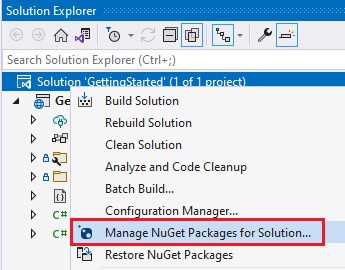
In the package manager dialog, open the Browse tab and install the Reveal.Sdk.AI.AspNetCore NuGet package into your project.
Package Name: Reveal.Sdk.AI.AspNetCore
Or using the Package Manager Console:
Install-Package Reveal.Sdk.AI.AspNetCore
Or using the .NET CLI:
dotnet add package Reveal.Sdk.AI.AspNetCore
Step 2: Configure Services
Open and modify the Program.cs file to add the AI services. The AI SDK extends the base Reveal SDK, so you need both configured:
using Reveal.Sdk;
using Reveal.Sdk.AI;

var builder = WebApplication.CreateBuilder(args);

// Add Reveal SDK (required)
builder.Services.AddControllers().AddReveal();

// Add Reveal AI services
builder.Services.AddRevealAI();

var app = builder.Build();
app.Run();
Step 3: Install and Configure an LLM Provider
Each LLM provider is distributed as a separate NuGet package. Install the package for your chosen provider and register it after AddRevealAI().
For example, to use OpenAI:
dotnet add package Reveal.Sdk.AI.OpenAI
builder.Services.AddRevealAI()
    .AddOpenAI(options =>
    {
        options.ApiKey = builder.Configuration["RevealAI:OpenAI:ApiKey"];
    });
For detailed setup instructions for each provider, see the Providers section:
| Provider | NuGet Package | Guide |
|---|---|---|
| OpenAI | Reveal.Sdk.AI.OpenAI | Setup guide |
| Azure OpenAI | Reveal.Sdk.AI.AzureOpenAI | Setup guide |
| Anthropic | Reveal.Sdk.AI.Anthropic | Setup guide |
| Google Gemini | Reveal.Sdk.AI.Google | Setup guide |
Never commit API keys to source control. Always use environment variables, User Secrets, or a secure key management service.
Complete Example
Here's a complete Program.cs with AI features configured:
using Reveal.Sdk;
using Reveal.Sdk.AI;

var builder = WebApplication.CreateBuilder(args);

// Add CORS for cross-origin requests
builder.Services.AddCors(options =>
{
    options.AddDefaultPolicy(policy =>
    {
        policy.WithOrigins("http://localhost:4200")
              .AllowAnyMethod()
              .AllowAnyHeader();
    });
});

// Add base Reveal SDK
builder.Services.AddControllers().AddReveal(revealBuilder =>
{
    revealBuilder.AddSettings(settings =>
    {
        settings.LocalFileStoragePath = "Data";
    });
});

// Add Reveal AI with OpenAI provider
builder.Services.AddRevealAI()
    .AddOpenAI(options =>
    {
        options.ApiKey = builder.Configuration["RevealAI:OpenAI:ApiKey"];
        options.Model = "gpt-4.1";
    });

var app = builder.Build();

app.UseCors();
app.MapControllers();

app.Run();
Node.js (Coming Soon)
Node.js support for the AI Server SDK is under development and will be available in a future release.
For now, ASP.NET Core is the recommended server platform for AI features.
Java (Coming Soon)
Java support for the AI Server SDK is under development and will be available in a future release.
For now, ASP.NET Core is the recommended server platform for AI features.
Verify Installation
After installation, verify the AI SDK is properly configured:
Step 1: Run Your Application
dotnet run
Step 2: Check AI Endpoints
The AI SDK adds several endpoints under /api/reveal/ai/:
Test the providers endpoint:
curl http://localhost:5000/api/reveal/ai/providers
Expected response:
{
  "providers": ["openai", "anthropic"]
}