Reveal SDK AI 機能は現在ベータ版であり、最終リリースに向けて改善するためのフィードバックをお待ちしております。
問題や提案がありましたら、サポート チャネルを通じてご報告ください。
AI サーバー SDK のインストール
Reveal SDK AI サーバーは、アプリケーションで AI 機能を強化するために必要なバックエンド サービスを提供します。LLM プロバイダーと統合し、インサイト生成、ダッシュボード作成、会話型分析などの AI 操作を管理します。
前提条件
AI サーバー SDK をインストールする前に、以下を確認してください:
- 基本の Reveal SDK サーバーがインストールされ、設定されていること
- .NET 8.0 以上であること
- 少なくとも 1 つの LLM プロバイダー (OpenAI、Anthropic、Google など) へのアクセス権があること
- LLM プロバイダーの API キーが設定されていること
インストール方法
ASP.NET Core
ASP.NET Core 用 AI サーバー SDK は NuGet パッケージとして配布されています。
手順 1: NuGet パッケージのインストール
ソリューションまたはプロジェクトを右クリックし、ソリューションの [NuGet パッケージの管理] を選択します。
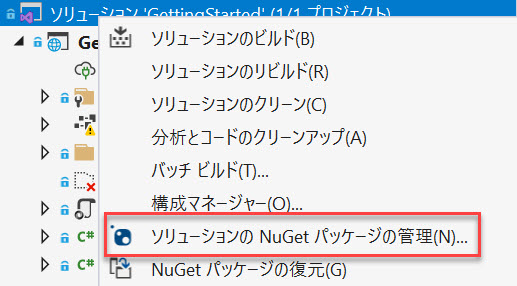
パッケージ マネージャー ダイアログで [参照] タブを開き、Reveal.Sdk.AI.AspNetCore NuGet パッケージをプロジェクトにインストールします。
パッケージ名: Reveal.Sdk.AI.AspNetCore
または、パッケージ マネージャー コンソールを使用する場合:
Install-Package Reveal.Sdk.AI.AspNetCore
または、.NET CLI を使用する場合:
dotnet add package Reveal.Sdk.AI.AspNetCore
手順 2: サービスの構成
Program.cs ファイルを開いて変更し、AI サービスを追加します。AI SDK は基本の Reveal SDK を拡張するため、両方を設定する必要があります:
using Reveal.Sdk;
using Reveal.Sdk.AI;

var builder = WebApplication.CreateBuilder(args);

// Reveal SDK を追加 (必須)
builder.Services.AddControllers().AddReveal();

// Reveal AI サービスを追加
builder.Services.AddRevealAI();

var app = builder.Build();
app.Run();
手順 3: LLM プロバイダーの設定
少なくとも 1 つの LLM プロバイダーを設定します。AddRevealAI() の後にこの構成を追加します:
OpenAI の場合:
builder.Services.AddRevealAI()
    .ConfigureOpenAI(options =>
    {
        options.ApiKey = builder.Configuration["OpenAI:ApiKey"];
        options.ModelId = "gpt-4-.1";
    });
Azure OpenAI の場合:
builder.Services.AddRevealAI()
    .ConfigureAzureOpenAI(options =>
    {
        options.ApiKey = builder.Configuration["AzureOpenAI:ApiKey"];
        options.Endpoint = "https://yoururl.openai.azure.com/";
        options.DeploymentName = "gpt-4o";
    });
Anthropic Claude の場合:
builder.Services.AddRevealAI()
    .ConfigureAnthropic(options =>
    {
        options.ApiKey = builder.Configuration["Anthropic:ApiKey"];
        options.ModelId = "claude-sonnet-4-5";
    });
手順 4: API キーを安全に保存
LLM プロバイダーの API キーを appsettings.json またはユーザー シークレットに保存します:
{
  "OpenAI": {
    "ApiKey": "sk-your-api-key-here"
  },
  "Anthropic": {
    "ApiKey": "sk-ant-your-api-key-here"
  },
  "AzureOpenAI": {
    "ApiKey": "your-azure-api-key-here"
  }
}
API キーをソース管理にコミットしないでください。常にユーザー シークレット、環境変数、または安全なキー管理サービスを使用してください。
完全な例
AI 機能が設定された完全な Program.cs を次に示します:
using Reveal.Sdk;
using Reveal.Sdk.AI;

var builder = WebApplication.CreateBuilder(args);

// クロスオリジン リクエスト用の CORS を追加
builder.Services.AddCors(options =>
{
    options.AddDefaultPolicy(policy =>
    {
        policy.WithOrigins("http://localhost:4200")
              .AllowAnyMethod()
              .AllowAnyHeader();
    });
});

// ベース Reveal SDK を追加
builder.Services.AddControllers().AddReveal(revealBuilder =>
{
    revealBuilder.AddSettings(settings =>
    {
        settings.LocalFileStoragePath = "Data";
    });
});

// OpenAI プロバイダーで Reveal AI を追加
builder.Services.AddRevealAI()
    .ConfigureOpenAI(options =>
    {
        options.ApiKey = builder.Configuration["OpenAI:ApiKey"];
        options.ModelId = "gpt-4.1";
    });

var app = builder.Build();

app.UseCors();
app.MapControllers();

app.Run();
Node.js (近日公開)
AI サーバー SDK の Node.js サポートは開発中であり、今後のリリースで利用可能になる予定です。
現時点では、AI 機能には ASP.NET Core が推奨されるサーバー プラットフォームです。
Java (近日公開)
AI サーバー SDK の Java サポートは開発中であり、今後のリリースで利用可能になる予定です。
現時点では、AI 機能には ASP.NET Core が推奨されるサーバー プラットフォームです。
インストールの確認
インストール後、AI SDK が正しく設定されていることを確認します:
手順 1: アプリケーションの実行
dotnet run
手順 2: AI エンドポイントの確認
AI SDK は /api/reveal/ai/ の下にいくつかのエンドポイントを追加します:
プロバイダー エンドポイントをテストします:
curl http://localhost:5000/api/reveal/ai/providers
期待されるレスポンス:
{
  "providers": ["openai", "anthropic"]
}