Time Zones
By default, the Reveal SDK uses the browser's time zone for relative date filters such as Today or This Month, for the date pickers, and for the currentTimeZone() function. To show dashboards in another time zone, for example to a user who works in New York on a laptop set to London, set RevealSdkSettings.timeZone. Reveal then uses that time zone and converts every DateTime field read from the data source (not calculated fields) to it.
Reveal doesn't include a time zone picker: as with the language, your application provides the UI.
The time zone API is available in Reveal SDK 2.3.0 and later.
Setting the Time Zone
Set RevealSdkSettings.timeZone to one of these values:
| Value | Time zone used by relative date filters, date pickers and currentTimeZone() | DateTime values |
|---|---|---|
null (the default) | The browser's | Not converted, shown as stored |
RVTimeZone.Browser | The browser's | Converted to the browser's time zone |
An RVTimeZone member or an IANA name | That time zone | Converted to that time zone |
null and RVTimeZone.Browser differ only in the conversion. A value stored as 2024-01-31 23:30 is shown as 23:30 with null, and as 18:30 with RVTimeZone.Browser in a browser set to New York. Use RVTimeZone.Browser to show DateTime values in the user's own time zone.
// Use New York time instead of the browser's
RevealSdkSettings.timeZone = RVTimeZone.AmericaNewYork;

// Any IANA time zone name works too
RevealSdkSettings.timeZone = "Europe/Madrid";

// Go back to the default: the browser's time zone, with no conversion
RevealSdkSettings.timeZone = null;
You can set it before creating the RevealView, or at any time while a dashboard is open (see Switching the Time Zone on an Open Dashboard). The time zone is global: every RevealView on the page uses the same one. To get the time zone in use, call RevealSdkSettings.getCurrentTimeZone().
The server SDKs (ASP.NET, Java and Node.js) need no code for this: the client sends the time zone with every data request. Only server-side exports take a time zone of their own.
Building the List of Time Zones
RVTimeZone lists the 139 most used time zones, one for each distinct UTC offset and daylight saving rule, plus Browser. Every member is an IANA name accepted by both the browser and the server. The Etc/GMT members are fixed offsets with the sign inverted, as IANA defines them: Etc/GMT+8 is UTC−8. The example at the end of this topic fills a selector with these members.
To offer every time zone the browser knows, use Intl.supportedValuesOf("timeZone") instead.
Handling Invalid Time Zone Names
Setting a name Reveal doesn't recognize throws an error, and the previous time zone stays in use. Wrap the assignment when the name comes from user input or from a saved setting:
try {
    RevealSdkSettings.timeZone = userInput;
} catch (e) {
    showError(e.message); // "Invalid time zone: ..."
}
In the example, a saved name that is no longer valid shows the error next to the selector:

Use IANA names only. Windows names such as Pacific Standard Time are rejected. Offset strings such as +05:30 are accepted by some browsers, but the server can't resolve them, and every visualization with DateTime fields then fails with "Unknown time zone". For a fixed offset, use the matching Etc/GMT member or a city in that time zone, such as Asia/Kolkata for UTC+5:30.
Switching the Time Zone on an Open Dashboard
Setting RevealSdkSettings.timeZone while a dashboard is displayed reloads its data in place. The dashboard isn't rebuilt, so the user keeps:
- their filter selections
- the maximized visualization
- drill-down levels and scroll positions
Relative date filters move to the new time zone (Today becomes today in that zone), and open popups close. Setting the value that is already in use reloads nothing.
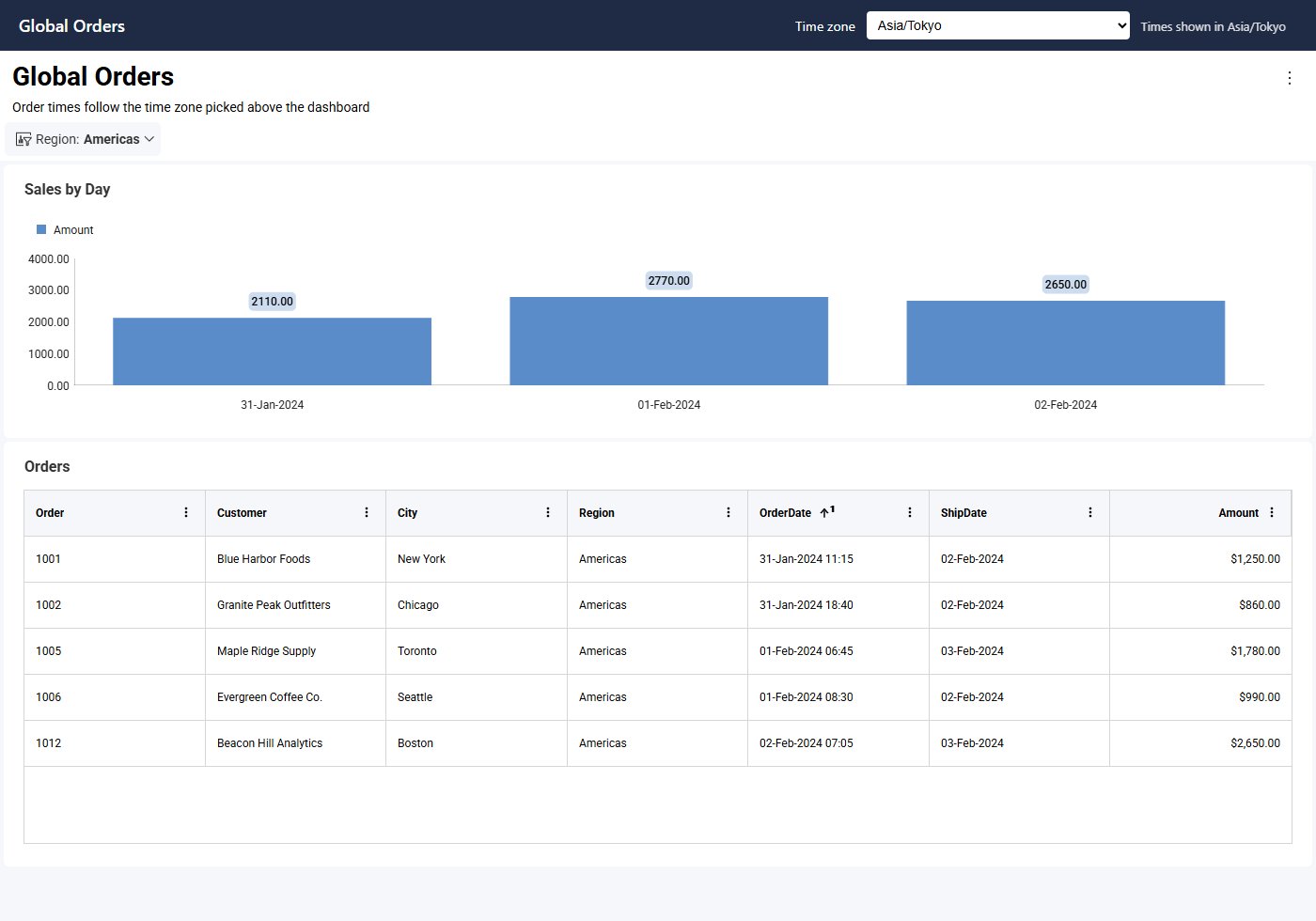
Here the Region filter was set to Americas before switching to Asia/Tokyo. The filter is kept, and only the order times change:
How DateTime Values Are Converted
While a time zone is set, the server converts every DateTime field read from the data source (not calculated fields) to it. The conversion happens before grouping, filtering and formatting, and before calculated fields are evaluated, so they read converted values. Dashboards and data sources don't need any changes.
The conversion starts from UTC. As everywhere in Reveal, DateTime values without a time zone are treated as UTC, and values that carry their own offset, such as SQL Server datetimeoffset or Oracle TIMESTAMP WITH TIME ZONE, are normalized to UTC.
- Only DateTime fields are converted. Date and Time fields are never shifted, even when the DateTime on the same row moves to another day.
- Grouping follows the time zone. Grouping by day, week or month uses the converted values.
- Calculated fields aren't converted. The fields they read are already converted, so they aren't converted again. A formula that calls
applyTimeZone()converts a second time (see Upgrading Existing Dashboards). - Custom visualizations get converted values. The data passed to a custom visualization is already in the time zone in use.
For example, take an order with an OrderDate DateTime field stored as 2024-01-31 23:30 and a ShipDate Date field stored as 2024-02-02:
RevealSdkSettings.timeZone | OrderDate (DateTime) | ShipDate (Date) |
|---|---|---|
null | 2024-01-31 23:30 | 2024-02-02 |
RVTimeZone.AmericaNewYork | 2024-01-31 18:30 | 2024-02-02 |
RVTimeZone.AsiaTokyo | 2024-02-01 08:30 | 2024-02-02 |
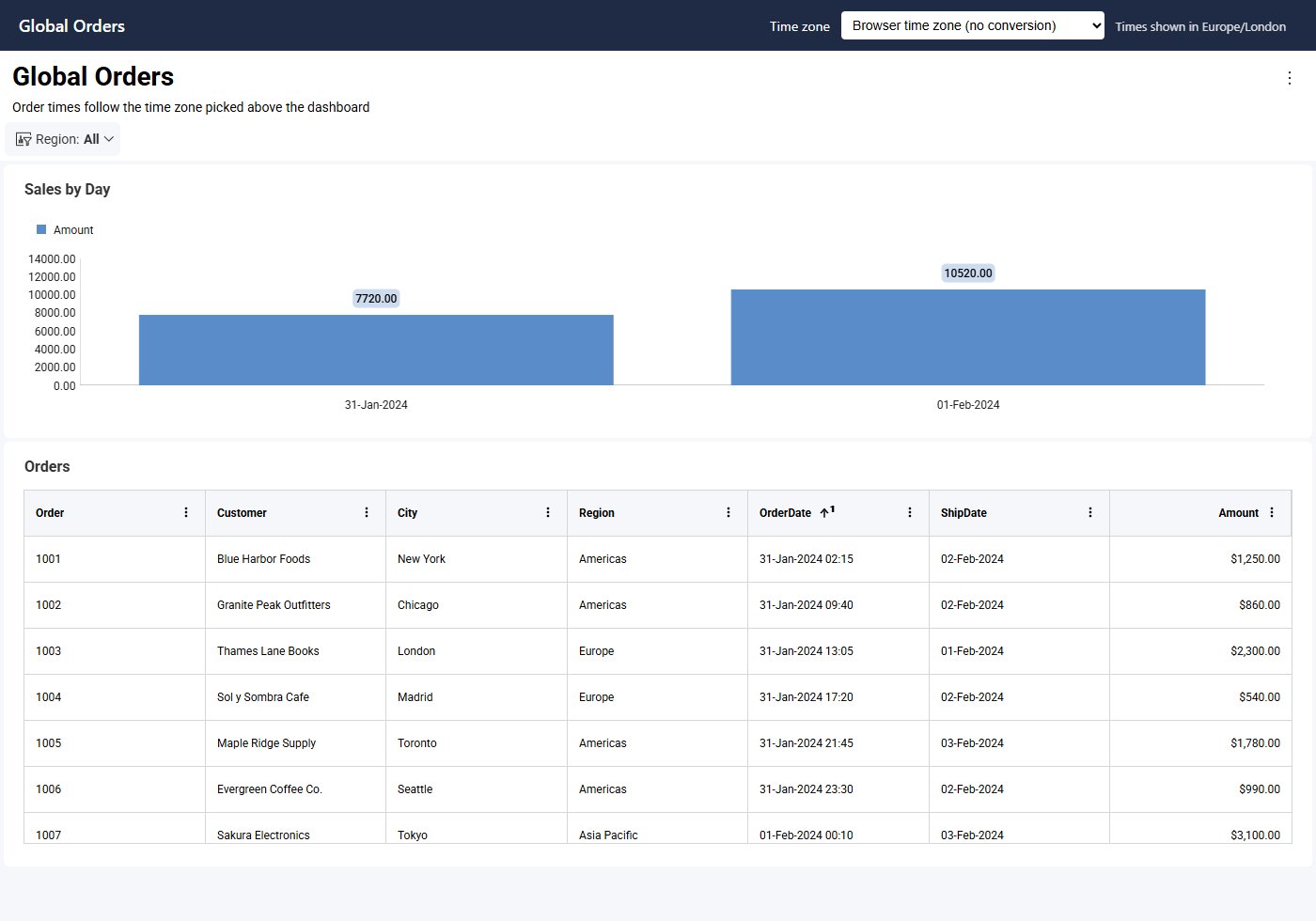
The dashboard below holds twelve orders placed around midnight UTC between January 31 and February 1. With no time zone set, Sales by Day groups them into two days:
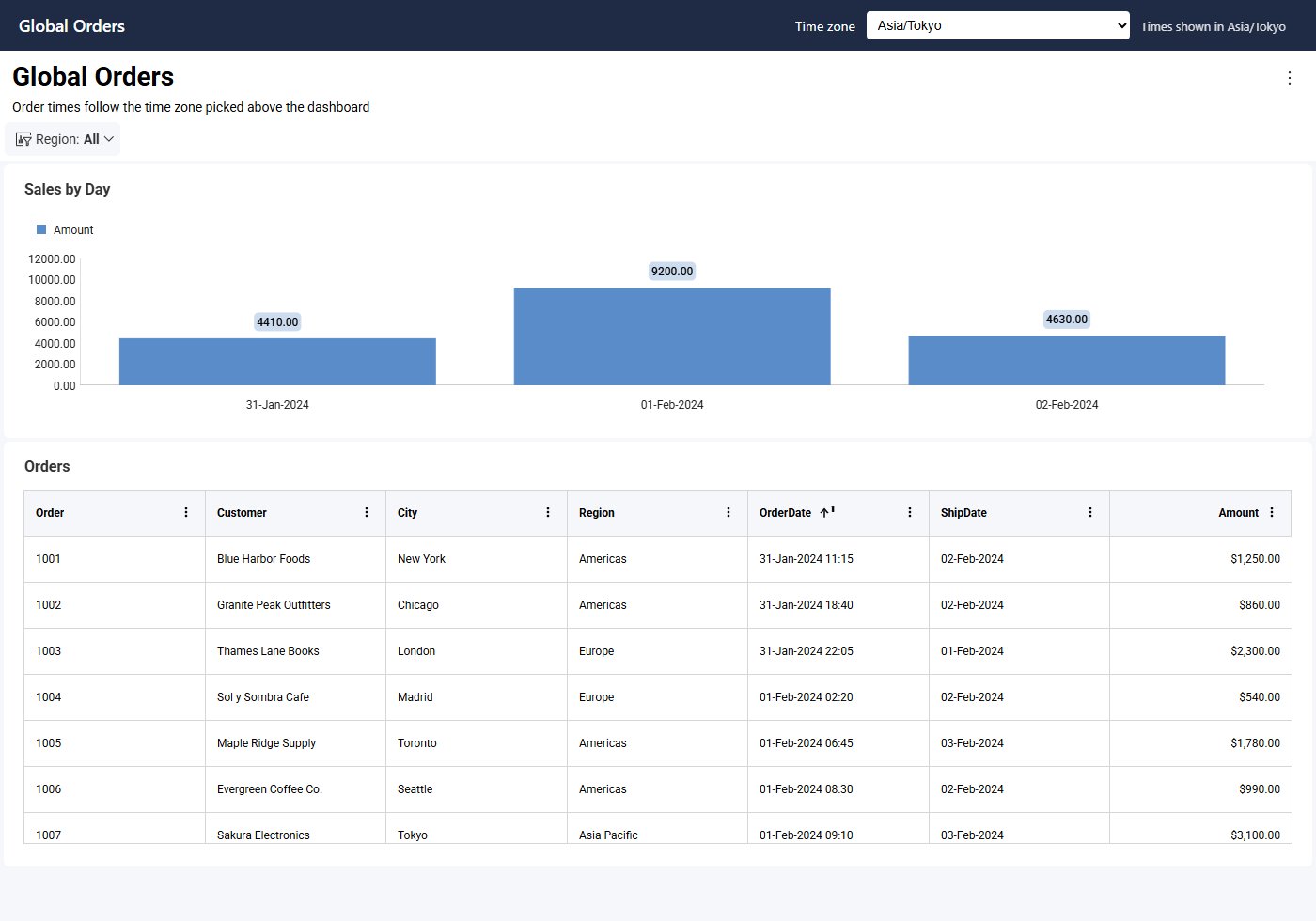
With RVTimeZone.AsiaTokyo, every OrderDate moves nine hours ahead, so the same orders fall on three days. ShipDate doesn't change:
Supported Data Sources
Time zone conversion works only with the data sources listed in Feature Support by Data Source. While a time zone is set, visualizations with DateTime fields show the error "Converting to the current time zone requires Engine2…" when they use any other data source, blend one in, or use transposed data. Keep RevealSdkSettings.timeZone set to null for those dashboards.
Exports
Exports started from the RevealView contain the values the user sees, in the time zone in use.
Server-side exports don't have a browser, so they use the TimeZone property of the export options. When it's set, DateTime values are converted to it, and relative date filters and currentTimeZone() use it. When it isn't set, the export uses UTC and converts nothing.
- ASP.NET
- Java
- Node.js
var pdfOptions = new PdfExportOptions()
{
    TimeZone = "America/New_York"
};

var stream = await dashboardExporter.ExportToPdf(dashboardName, options: pdfOptions);
PdfExportOptions options = new PdfExportOptions();
options.setTimeZone("America/New_York");

// revealServer is the IRevealServer your application built with RevealServerBuilder
IDashboardExporter exporter = revealServer.getDashboardExporter();
InputStream stream = exporter.exportToPdf(dashboardName, userContext, options).get();
import { PdfExportOptions } from "reveal-sdk-node";

const options = new PdfExportOptions();
options.timeZone = "America/New_York";

const stream = await revealServer.exporter.exportPdf(dashboardName, null, options, null);
The same property is available on every export options class: Excel, PowerPoint, Image and CSV. To export in the time zone a user picked in your application, send their choice to the server with the export request.
Upgrading Existing Dashboards
Remove applyTimeZone() formulas that did the conversion by hand, such as applyTimeZone([OrderDate], currentTimeZone()) or applyTimeZone([OrderDate], "Europe/Madrid"), and use [OrderDate] directly. While a time zone is set, OrderDate is already converted, so these formulas convert it twice. Dashboards keep working as before while RevealSdkSettings.timeZone is null.
Example: Letting Users Pick Their Time Zone
This example adds a time zone selector next to the dashboard, shows the time zone in use, remembers the user's choice, and switches the open dashboard without losing its filters:

Step 1 - Add the selector, a label for the time zone in use, and a place for errors.
<select id="timeZone">
    <option value="">Browser time zone (no conversion)</option>
    <option value="Browser">Browser time zone (convert dates)</option>
</select>
<span id="currentTimeZone"></span>
<span id="timeZoneError" style="color: red"></span>
<div id="revealView" style="height: 800px; width: 100%;"></div>
Step 2 - Fill the selector, apply the saved choice before the dashboard loads, and switch on change.
const select = document.getElementById("timeZone");
const current = document.getElementById("currentTimeZone");
const error = document.getElementById("timeZoneError");

for (const zone of Object.values(RVTimeZone)) {
    if (zone !== RVTimeZone.Browser) {
        select.add(new Option(zone.replace(/_/g, " "), zone));
    }
}

// Sets the time zone; returns false and keeps the previous one when the name is invalid
function setTimeZone(zone) {
    let applied = true;
    try {
        RevealSdkSettings.timeZone = zone || null;
        error.textContent = "";
        select.value = zone || "";
    } catch (e) {
        error.textContent = e.message;
        applied = false;
    }
    current.textContent = `Times shown in ${RevealSdkSettings.getCurrentTimeZone()}`;
    return applied;
}

select.addEventListener("change", () => {
    // An open dashboard reloads by itself, keeping its filters
    if (setTimeZone(select.value)) {
        localStorage.setItem("timeZone", select.value);
    }
});

// Apply the saved choice before creating the RevealView
setTimeZone(localStorage.getItem("timeZone") ?? "");

RevealSdkSettings.setBaseUrl("https://localhost:5111/");
RVDashboard.loadDashboard("Sales").then(dashboard => {
    const revealView = new RevealView("#revealView");
    revealView.dashboard = dashboard;
});
To follow the user across devices, save the choice in your application's user profile instead of localStorage, and read it from there before creating the RevealView.