Row-Level Security
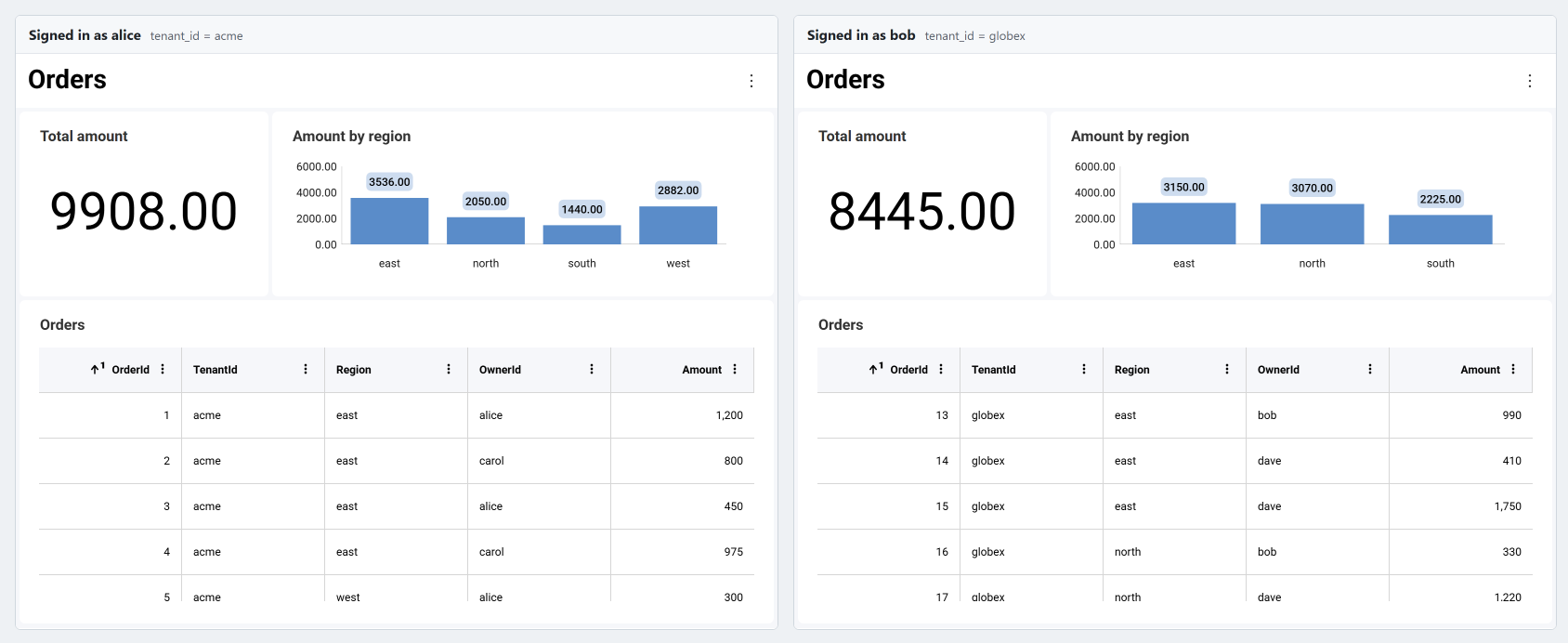
Row-level security (RLS) controls which rows of a data source each user can read. You define a row filter on the server for a data source item, such as "the row's TenantId must equal the user's tenant", and Reveal applies it to every query that reads that item: visualizations, totals, dashboard filter values, blended data and exports. Every user opens the same dashboard and sees only their own rows.
How It Works
You set the filter in your data source provider, using the user context of the current request: the user id, roles and any other values (claims) your server knows about the signed-in user.
- The filter stays on the server. It's never sent to the client, and nothing a client sends can remove or replace it.
- The filter runs before any aggregation. For most database items, it's part of the query's
WHEREclause. Totals, pivot grand totals, filter value lists and blended data are computed only from the rows the user can see. - Values are sent as query parameters. User context values are never concatenated into the query text, so a value can't change the query.
- Caching respects the filter. Results are cached per filter value, so results computed for one user are never served to a user whose filter values differ.
- It fails closed. When a filter can't be applied, for example because a value it needs is missing, the request fails instead of returning unfiltered rows.
Requirements
Row-level security is available in the ASP.NET, Java and Node.js server SDKs, version 2.3.0 and later. There's no feature flag, setting or package to add, and no client API: it's configured entirely on the server, and your client code doesn't change. It applies only to data source items you give a row filter, and every other item is queried exactly as before.
- Supported data sources. Row filters apply to tabular data source items: database items such as tables, views, custom queries and stored procedures, and CSV, Excel and JSON file items. The item's data source must be one of those listed in Feature Support by Data Source. You can set a row filter on an item from another data source, but every request that reads it fails with the error "Row-level security is only available on Engine2, and this request cannot run on it". A visualization that reads an item with a row filter fails the same way when it blends in another data source or uses transposed data.
- The
Engine2Enabledsetting left on. This server setting is on by default (Engine2Enabledin ASP.NET,setEngine2Enabledin Java, theengine2Enabledoption in Node.js). If you turn it off, every request that reads an item with a row filter fails with the same error.
Setting Up Row-Level Security
Step 1 - Put the values your filters need into the user context.
Read them from the identity your authentication has already established. Every property of the user context is a value a filter can read by name. Roles are stored in the well-known Roles property.
- ASP.NET
- Java
- Node.js
- Node.js - TS
public class UserContextProvider : IRVUserContextProvider
{
    public IRVUserContext GetUserContext(HttpContext aspnetContext)
    {
        // The signed-in user, as your authentication middleware established it
        var user = aspnetContext.User;

        var properties = new Dictionary<string, object>
        {
            ["tenant_id"] = user.FindFirstValue("tenant_id"),
            ["regions"] = user.FindAll("region").Select(c => c.Value).ToArray(),
        };

        return new RVUserContext(user.FindFirstValue(ClaimTypes.NameIdentifier), properties)
        {
            Roles = user.FindAll(ClaimTypes.Role).Select(c => c.Value).ToArray()
        };
    }
}
public class UserContextProvider implements IRVServletUserContextProvider {
    @Override
    public IRVUserContext getUserContext(HttpServletRequest request) {
        // The signed-in user, as your authentication layer established it; AppUser is your own user model
        AppUser user = users.find(request.getUserPrincipal().getName());

        RVUserContext userContext = new RVUserContext(user.getId());
        userContext.setClaim("tenant_id", user.getTenantId());
        userContext.setClaim("regions", user.getRegions()); // a List<String>
        userContext.setRoles(user.getRoles());              // a String[]
        return userContext;
    }
}
const userContextProvider = (request) => {
  // The signed-in user, as your authentication middleware established it
  const user = request.user;

  const userContext = new reveal.RVUserContext(user.id, new Map());
  userContext.setClaim("tenant_id", user.tenantId);
  userContext.setClaim("regions", user.regions); // an array of strings
  userContext.roles = user.roles;
  return userContext;
};
const userContextProvider = (request: IncomingMessage) => {
  // The signed-in user, as your authentication middleware established it
  const user = (request as any).user;

  const userContext = new RVUserContext(user.id, new Map<string, Object>());
  userContext.setClaim("tenant_id", user.tenantId);
  userContext.setClaim("regions", user.regions); // an array of strings
  userContext.roles = user.roles;
  return userContext;
};
A value can be a string, a number, a boolean or a date, or a collection of them for the multi-value filters described below. The name UserId is reserved: a filter that reads UserId always gets the user id of the user context.
Never fill the user context from values the client sends for this purpose, such as headers set with setAdditionalHeadersProvider. Anyone can change those values in their browser and read another user's rows. Use the identity your server has verified: an authentication cookie, a validated token, or your own session store.
Step 2 - Set a row filter on the data source items in your data source provider.
The data source item your provider receives comes from the client, so write both provider methods as an allowlist: return only the data sources and items your application serves, and throw an exception for anything else. Returning null keeps the item as the client sent it. Before setting a filter, set everything that decides what the item reads, such as the table, schema, custom query or stored procedure of a database item, using values from your server. Map any value the request carries, such as a table name or file path, to a value of your own before using it.
The provider also calls itself on the resource item of CSV, Excel and JSON items, as described in Securing File Data Sources.
- ASP.NET
- Java
- Node.js
- Node.js - TS
public class DataSourceProvider : IRVDataSourceProvider
{
    private static readonly string[] Tables = { "Orders", "Customers" };

    public async Task<RVDataSourceItem> ChangeDataSourceItemAsync(IRVUserContext userContext, string dashboardId, RVDataSourceItem dataSourceItem)
    {
        await ChangeDataSourceAsync(userContext, dataSourceItem.DataSource);

        if (dataSourceItem is RVResourceBasedDataSourceItem resourceBasedItem)
        {
            await ChangeDataSourceItemAsync(userContext, dashboardId, (RVDataSourceItem)resourceBasedItem.ResourceItem);
        }

        if (dataSourceItem is RVSqlServerDataSourceItem sqlItem)
        {
            // Decide on the server what the item reads
            var table = Tables.FirstOrDefault(t => string.Equals(t, sqlItem.Table, StringComparison.OrdinalIgnoreCase))
                ?? throw new InvalidOperationException($"Table '{sqlItem.Table}' is not available.");
            sqlItem.Schema = "dbo";
            sqlItem.Table = table;
            sqlItem.CustomQuery = null;
            sqlItem.Procedure = null;

            // Every row the user reads from the table must belong to their tenant
            sqlItem.RowFilter = RowFilter.FieldEqualsContext("TenantId", "tenant_id");
            return sqlItem;
        }

        // Refuse every item your application doesn't serve
        throw new InvalidOperationException("This data source item is not available.");
    }

    public Task<RVDashboardDataSource> ChangeDataSourceAsync(IRVUserContext userContext, RVDashboardDataSource dataSource)
    {
        if (dataSource is RVSqlServerDataSource sqlServer)
        {
            // Set the host and database from your server's configuration
            sqlServer.Host = "db.example.com";
            sqlServer.Database = "Sales";
            return Task.FromResult(dataSource);
        }

        // Refuse every data source your application doesn't serve
        throw new InvalidOperationException("This data source is not available.");
    }
}
public class DataSourceProvider implements IRVDataSourceProvider {
    private static final List<String> TABLES = List.of("Orders", "Customers");

    public RVDataSourceItem changeDataSourceItem(IRVUserContext userContext, String dashboardId, RVDataSourceItem dataSourceItem) {
        changeDataSource(userContext, dataSourceItem.getDataSource());

        if (dataSourceItem instanceof RVResourceBasedDataSourceItem resourceBasedItem) {
            changeDataSourceItem(userContext, dashboardId, (RVDataSourceItem) resourceBasedItem.getResourceItem());
        }

        if (dataSourceItem instanceof RVSqlServerDataSourceItem sqlItem) {
            // Decide on the server what the item reads
            String table = TABLES.stream()
                .filter(t -> t.equalsIgnoreCase(sqlItem.getTable()))
                .findFirst()
                .orElseThrow(() -> new IllegalArgumentException("Table '" + sqlItem.getTable() + "' is not available."));
            sqlItem.setSchema("dbo");
            sqlItem.setTable(table);
            sqlItem.setCustomQuery(null);
            sqlItem.setProcedure(null);

            // Every row the user reads from the table must belong to their tenant
            sqlItem.setRowFilter(RowFilter.fieldEqualsContext("TenantId", "tenant_id"));
            return sqlItem;
        }

        // Refuse every item your application doesn't serve
        throw new IllegalArgumentException("This data source item is not available.");
    }

    public RVDashboardDataSource changeDataSource(IRVUserContext userContext, RVDashboardDataSource dataSource) {
        if (dataSource instanceof RVSqlServerDataSource sqlServer) {
            // Set the host and database from your server's configuration
            sqlServer.setHost("db.example.com");
            sqlServer.setDatabase("Sales");
            return sqlServer;
        }

        // Refuse every data source your application doesn't serve
        throw new IllegalArgumentException("This data source is not available.");
    }
}
const TABLES = ["Orders", "Customers"];

const dataSourceItemProvider = async (userContext, dataSourceItem) => {
  await dataSourceProvider(userContext, dataSourceItem.dataSource);

  if (dataSourceItem instanceof reveal.RVResourceBasedDataSourceItem) {
    await dataSourceItemProvider(userContext, dataSourceItem.resourceItem);
  }

  if (dataSourceItem instanceof reveal.RVSqlServerDataSourceItem) {
    // Decide on the server what the item reads
    const table = TABLES.find(t => t.toLowerCase() === String(dataSourceItem.table).toLowerCase());
    if (!table) {
      throw new Error(`Table '${dataSourceItem.table}' is not available.`);
    }
    dataSourceItem.schema = "dbo";
    dataSourceItem.table = table;
    dataSourceItem.customQuery = null;
    dataSourceItem.procedure = null;

    // Every row the user reads from the table must belong to their tenant
    dataSourceItem.rowFilter = reveal.RowFilter.fieldEqualsContext("TenantId", "tenant_id");
    return dataSourceItem;
  }

  // Refuse every item your application doesn't serve
  throw new Error("This data source item is not available.");
};

const dataSourceProvider = async (userContext, dataSource) => {
  if (dataSource instanceof reveal.RVSqlServerDataSource) {
    // Set the host and database from your server's configuration
    dataSource.host = "db.example.com";
    dataSource.database = "Sales";
    return dataSource;
  }

  // Refuse every data source your application doesn't serve
  throw new Error("This data source is not available.");
};
const TABLES = ["Orders", "Customers"];

const dataSourceItemProvider = async (userContext: IRVUserContext | null, dataSourceItem: RVDataSourceItem): Promise<RVDataSourceItem> => {
  await dataSourceProvider(userContext, dataSourceItem.dataSource);

  if (dataSourceItem instanceof RVResourceBasedDataSourceItem) {
    await dataSourceItemProvider(userContext, dataSourceItem.resourceItem as RVDataSourceItem);
  }

  if (dataSourceItem instanceof RVSqlServerDataSourceItem) {
    // Decide on the server what the item reads
    const table = TABLES.find(t => t.toLowerCase() === String(dataSourceItem.table).toLowerCase());
    if (!table) {
      throw new Error(`Table '${dataSourceItem.table}' is not available.`);
    }
    dataSourceItem.schema = "dbo";
    dataSourceItem.table = table;
    dataSourceItem.customQuery = null;
    dataSourceItem.procedure = null;

    // Every row the user reads from the table must belong to their tenant
    dataSourceItem.rowFilter = RowFilter.fieldEqualsContext("TenantId", "tenant_id");
    return dataSourceItem;
  }

  // Refuse every item your application doesn't serve
  throw new Error("This data source item is not available.");
};

const dataSourceProvider = async (userContext: IRVUserContext | null, dataSource: RVDashboardDataSource): Promise<RVDashboardDataSource> => {
  if (dataSource instanceof RVSqlServerDataSource) {
    // Set the host and database from your server's configuration
    dataSource.host = "db.example.com";
    dataSource.database = "Sales";
    return dataSource;
  }

  // Refuse every data source your application doesn't serve
  throw new Error("This data source is not available.");
};
For the full approach to setting the data source, see Replacing Data Sources.
Step 3 - Register both providers with the Reveal SDK.
- ASP.NET
- Java
- Node.js
- Node.js - TS
builder.Services.AddControllers().AddReveal(builder =>
{
    builder.AddUserContextProvider<UserContextProvider>();
    builder.AddDataSourceProvider<DataSourceProvider>();
});
RevealEngineServlet servlet = new RevealEngineServlet(
    new RevealServerBuilder()
        .setDataSourceProvider(new DataSourceProvider())
        .build(),
    new UserContextProvider());
const revealOptions = {
  userContextProvider: userContextProvider,
  dataSourceProvider: dataSourceProvider,
  dataSourceItemProvider: dataSourceItemProvider,
};
app.use('/', reveal(revealOptions));
const revealOptions: RevealOptions = {
  userContextProvider: userContextProvider,
  dataSourceProvider: dataSourceProvider,
  dataSourceItemProvider: dataSourceItemProvider,
};
app.use('/', reveal(revealOptions));
The row filter classes are in the Reveal.Sdk.Data namespace in ASP.NET and the io.revealbi.core.data package in Java, and are exported by reveal-sdk-node in Node.js.
Row Filter Types
| Filter | Keeps the rows where |
|---|---|
FieldEqualsContext(field, name) | The field equals the user context value name. |
FieldInContext(field, name) | The field is one of the values of the user context value name, a collection. A single value counts as a collection of one. |
FieldEqualsValue(field, value) | The field equals a fixed value. |
FieldInValues(field, values...) | The field is one of several fixed values. |
All(filters...) | Every filter holds (AND). |
Any(filters...) | At least one filter holds (OR). |
Expression(expression, parameters) | A condition written in the dashboard expression language holds. |
In Java and Node.js the names start with a lowercase letter: fieldEqualsContext, all, expression, and so on. A field is named as it appears in the data source, and names are case-sensitive. The field doesn't need to appear in the dashboard or its visualizations: Reveal reads it from the data source.
- ASP.NET
- Java
- Node.js
- Node.js - TS
// The user's tenant, and either one of the user's regions or a row the user owns
RowFilter.All(
    RowFilter.FieldEqualsContext("TenantId", "tenant_id"),
    RowFilter.Any(
        RowFilter.FieldInContext("Region", "regions").WhenMissing(RowFilterMissing.DenyRows),
        RowFilter.FieldEqualsContext("OwnerId", "UserId")));
// The user's tenant, and either one of the user's regions or a row the user owns
RowFilter.all(
    RowFilter.fieldEqualsContext("TenantId", "tenant_id"),
    RowFilter.any(
        RowFilter.fieldInContext("Region", "regions").whenMissing(RowFilterMissing.DENY_ROWS),
        RowFilter.fieldEqualsContext("OwnerId", "UserId")));
// The user's tenant, and either one of the user's regions or a row the user owns
reveal.RowFilter.all(
  reveal.RowFilter.fieldEqualsContext("TenantId", "tenant_id"),
  reveal.RowFilter.any(
    reveal.RowFilter.fieldInContext("Region", "regions").whenMissing(reveal.RowFilterMissing.DenyRows),
    reveal.RowFilter.fieldEqualsContext("OwnerId", "UserId")));
// The user's tenant, and either one of the user's regions or a row the user owns
RowFilter.all(
  RowFilter.fieldEqualsContext("TenantId", "tenant_id"),
  RowFilter.any(
    RowFilter.fieldInContext("Region", "regions").whenMissing(RowFilterMissing.DenyRows),
    RowFilter.fieldEqualsContext("OwnerId", "UserId")));
Expression Filters
An expression filter uses the same language as calculated fields. Each VARIABLE("name") reads the expression's own parameters first, then the user context, where UserId is the user id.
- ASP.NET
- Java
- Node.js
- Node.js - TS
// An expression, with a value of its own
RowFilter.Expression(
    "AND([TenantId] = VARIABLE(\"tenant_id\"), [Discount] < VARIABLE(\"max_discount\"))",
    new Dictionary<string, object> { ["max_discount"] = 0.25 });
// An expression, with a value of its own
RowFilter.expression(
    "AND([TenantId] = VARIABLE(\"tenant_id\"), [Discount] < VARIABLE(\"max_discount\"))",
    Map.of("max_discount", 0.25));
// An expression, with a value of its own
reveal.RowFilter.expression(
  'AND([TenantId] = VARIABLE("tenant_id"), [Discount] < VARIABLE("max_discount"))',
  { max_discount: 0.25 });
// An expression, with a value of its own
RowFilter.expression(
  'AND([TenantId] = VARIABLE("tenant_id"), [Discount] < VARIABLE("max_discount"))',
  { max_discount: 0.25 });
Keep in mind:
- A variable with no value fails the request. Unlike the other filters, an expression can't deny rows instead.
- Variable names are case-sensitive, and names starting with
_ig_rv_are reserved. - Aggregation functions such as
SUMaren't allowed. - An expression filter can't be combined with
AllorAny. Combine conditions inside the expression instead, withANDandOR. - Time functions such as
TODAY()andNOW()use the time zone the client sends, so a boundary they draw can move by up to a day. Pass a date as a parameter instead.
Exempting Roles and Handling Missing Values
ExemptRoles lifts a filter for users who hold any of the given roles. The roles are read from the Roles property of the user context and compared case-sensitively. The Roles property must hold a collection of strings. If it holds anything else, such as a single string, a filter that exempts roles fails the request.
By default, a filter that reads a user context value the current user doesn't have rejects the request: the visualizations show an error instead of data. To show no rows instead, use WhenMissing with DenyRows.
- ASP.NET
- Java
- Node.js
- Node.js - TS
// Administrators and auditors see every tenant
RowFilter.FieldEqualsContext("TenantId", "tenant_id").ExemptRoles("admin", "auditor");

RowFilter.FieldEqualsContext("TenantId", "tenant_id").WhenMissing(RowFilterMissing.DenyRows);
// Administrators and auditors see every tenant
RowFilter.fieldEqualsContext("TenantId", "tenant_id").exemptRoles("admin", "auditor");

RowFilter.fieldEqualsContext("TenantId", "tenant_id").whenMissing(RowFilterMissing.DENY_ROWS);
// Administrators and auditors see every tenant
reveal.RowFilter.fieldEqualsContext("TenantId", "tenant_id").exemptRoles("admin", "auditor");

reveal.RowFilter.fieldEqualsContext("TenantId", "tenant_id").whenMissing(reveal.RowFilterMissing.DenyRows);
// Administrators and auditors see every tenant
RowFilter.fieldEqualsContext("TenantId", "tenant_id").exemptRoles("admin", "auditor");

RowFilter.fieldEqualsContext("TenantId", "tenant_id").whenMissing(RowFilterMissing.DenyRows);
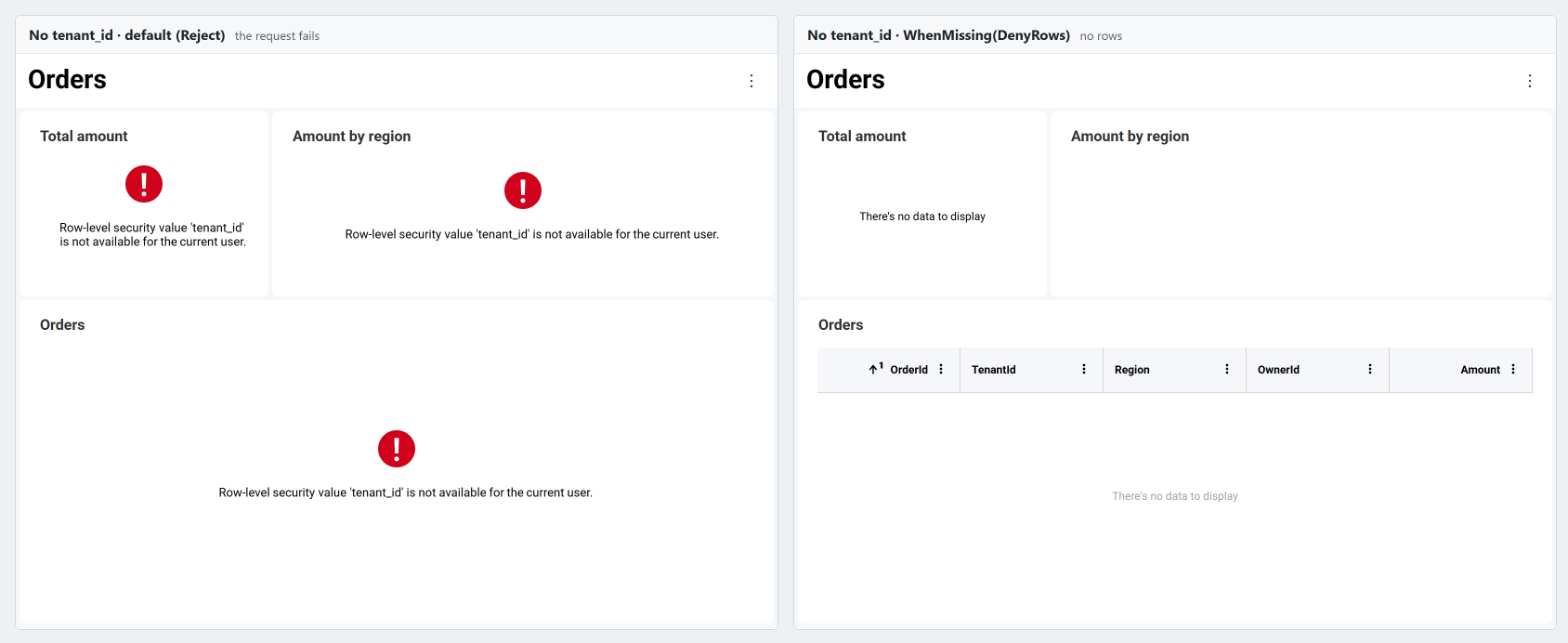
- A value counts as missing when the user context has no such property, or when it holds
nullor an empty collection. AUserIdcounts as missing when the user id is empty. - An empty string is a value, not a missing one: a user whose
tenant_idis""sees the rows whoseTenantIdis empty. Leave the property out for a user who has no value. - Inside
Any, a filter withDenyRowssimply doesn't grant its rows, and the other filters still apply. This is how the example above lets a user with no regions still see the rows they own.
Filters are immutable: ExemptRoles and WhenMissing return a new filter, so you can create a filter once and reuse it for every request.
Securing File Data Sources
CSV, Excel and JSON items read their file through a resource item, such as a local file item. Set the row filter on the item that reads the file, not on the resource item. The filter doesn't protect the file itself, so you must also mark the resource item RawAccessForbidden: Reveal then reads the file only through the filtered item and refuses every request that reads it as it is, such as downloading it or browsing its JSON structure. A request for a filtered item whose resource item isn't marked fails.
The provider receives the resource item both on its own and inside the item reading it, so call the provider on the resource item, as below, to handle both the same way.
- ASP.NET
- Java
- Node.js
- Node.js - TS
public async Task<RVDataSourceItem> ChangeDataSourceItemAsync(IRVUserContext userContext, string dashboardId, RVDataSourceItem dataSourceItem)
{
    await ChangeDataSourceAsync(userContext, dataSourceItem.DataSource);

    if (dataSourceItem is RVResourceBasedDataSourceItem resourceBasedItem)
    {
        // A CSV, Excel or JSON item: change the resource item that reads its file the same way
        await ChangeDataSourceItemAsync(userContext, dashboardId, (RVDataSourceItem)resourceBasedItem.ResourceItem);
    }

    if (dataSourceItem is RVLocalFileDataSourceItem file)
    {
        // The file holds every tenant's rows: never serve it as it is
        file.Uri = MapFile(file.Uri); // your own mapping to the files you serve; throws for any other
        file.RawAccessForbidden = true;
        return file;
    }

    if (dataSourceItem is RVCsvDataSourceItem csvItem)
    {
        // Every row the user reads from the file must belong to their tenant
        csvItem.RowFilter = RowFilter.FieldEqualsContext("TenantId", "tenant_id");
        return csvItem;
    }

    // Refuse every item your application doesn't serve
    throw new InvalidOperationException("This data source item is not available.");
}

public Task<RVDashboardDataSource> ChangeDataSourceAsync(IRVUserContext userContext, RVDashboardDataSource dataSource)
{
    // The data sources of the CSV item and of the local file item that reads its file
    if (dataSource is RVCsvDataSource || dataSource is RVLocalFileDataSource)
    {
        return Task.FromResult(dataSource);
    }

    // Refuse every data source your application doesn't serve
    throw new InvalidOperationException("This data source is not available.");
}
public RVDataSourceItem changeDataSourceItem(IRVUserContext userContext, String dashboardId, RVDataSourceItem dataSourceItem) {
    changeDataSource(userContext, dataSourceItem.getDataSource());

    if (dataSourceItem instanceof RVResourceBasedDataSourceItem resourceBasedItem) {
        // A CSV, Excel or JSON item: change the resource item that reads its file the same way
        changeDataSourceItem(userContext, dashboardId, (RVDataSourceItem) resourceBasedItem.getResourceItem());
    }

    if (dataSourceItem instanceof RVLocalFileDataSourceItem file) {
        // The file holds every tenant's rows: never serve it as it is
        file.setUri(mapFile(file.getUri())); // your own mapping to the files you serve; throws for any other
        file.setRawAccessForbidden(true);
        return file;
    }

    if (dataSourceItem instanceof RVCsvDataSourceItem csvItem) {
        // Every row the user reads from the file must belong to their tenant
        csvItem.setRowFilter(RowFilter.fieldEqualsContext("TenantId", "tenant_id"));
        return csvItem;
    }

    // Refuse every item your application doesn't serve
    throw new IllegalArgumentException("This data source item is not available.");
}

public RVDashboardDataSource changeDataSource(IRVUserContext userContext, RVDashboardDataSource dataSource) {
    // The data sources of the CSV item and of the local file item that reads its file
    if (dataSource instanceof RVCsvDataSource || dataSource instanceof RVLocalFileDataSource) {
        return dataSource;
    }

    // Refuse every data source your application doesn't serve
    throw new IllegalArgumentException("This data source is not available.");
}
const dataSourceItemProvider = async (userContext, dataSourceItem) => {
  await dataSourceProvider(userContext, dataSourceItem.dataSource);

  if (dataSourceItem instanceof reveal.RVResourceBasedDataSourceItem) {
    // A CSV, Excel or JSON item: change the resource item that reads its file the same way
    await dataSourceItemProvider(userContext, dataSourceItem.resourceItem);
  }

  if (dataSourceItem instanceof reveal.RVLocalFileDataSourceItem) {
    // The file holds every tenant's rows: never serve it as it is
    dataSourceItem.uri = mapFile(dataSourceItem.uri); // your own mapping to the files you serve; throws for any other
    dataSourceItem.rawAccessForbidden = true;
    return dataSourceItem;
  }

  if (dataSourceItem instanceof reveal.RVCsvDataSourceItem) {
    // Every row the user reads from the file must belong to their tenant
    dataSourceItem.rowFilter = reveal.RowFilter.fieldEqualsContext("TenantId", "tenant_id");
    return dataSourceItem;
  }

  // Refuse every item your application doesn't serve
  throw new Error("This data source item is not available.");
};

const dataSourceProvider = async (userContext, dataSource) => {
  // The data sources of the CSV item and of the local file item that reads its file
  if (dataSource instanceof reveal.RVCsvDataSource || dataSource instanceof reveal.RVLocalFileDataSource) {
    return dataSource;
  }

  // Refuse every data source your application doesn't serve
  throw new Error("This data source is not available.");
};
const dataSourceItemProvider = async (userContext: IRVUserContext | null, dataSourceItem: RVDataSourceItem): Promise<RVDataSourceItem> => {
  await dataSourceProvider(userContext, dataSourceItem.dataSource);

  if (dataSourceItem instanceof RVResourceBasedDataSourceItem) {
    // A CSV, Excel or JSON item: change the resource item that reads its file the same way
    await dataSourceItemProvider(userContext, dataSourceItem.resourceItem as RVDataSourceItem);
  }

  if (dataSourceItem instanceof RVLocalFileDataSourceItem) {
    // The file holds every tenant's rows: never serve it as it is
    dataSourceItem.uri = mapFile(dataSourceItem.uri); // your own mapping to the files you serve; throws for any other
    dataSourceItem.rawAccessForbidden = true;
    return dataSourceItem;
  }

  if (dataSourceItem instanceof RVCsvDataSourceItem) {
    // Every row the user reads from the file must belong to their tenant
    dataSourceItem.rowFilter = RowFilter.fieldEqualsContext("TenantId", "tenant_id");
    return dataSourceItem;
  }

  // Refuse every item your application doesn't serve
  throw new Error("This data source item is not available.");
};

const dataSourceProvider = async (userContext: IRVUserContext | null, dataSource: RVDashboardDataSource): Promise<RVDashboardDataSource> => {
  // The data sources of the CSV item and of the local file item that reads its file
  if (dataSource instanceof RVCsvDataSource || dataSource instanceof RVLocalFileDataSource) {
    return dataSource;
  }

  // Refuse every data source your application doesn't serve
  throw new Error("This data source is not available.");
};
If you also serve Excel or JSON items, set an Excel item's sheet and range, and a JSON item's column configuration, on the server: like a database item's table, they decide which columns a field name refers to.
Exporting Dashboards on the Server
When you export a dashboard on the server, pass the user context to the export method, as described in Provide User Context, so the export contains the rows that user sees. Without it, every user context value is missing: the export fails or, for filters that use DenyRows, contains no rows.
Best Practices
- Match the value type to the column type. Put a string in the user context for a text column and a number for a numeric column. A value of another type can match no rows, and a failed conversion can produce a database error that quotes a value from a row the user can't see.
- Know how your database compares values. Filters compare values in the data source, by its rules. With SQL Server and MySQL default collations,
'acme'also matches'ACME'and'acme '; file data sources compare values exactly. Don't use keys that differ only by case or trailing spaces. - Keep the data source provider fast. It runs for every data request, so cache lookups such as the user's permissions.
Limitations
- Calculated fields. A filter reads fields of the data source only. It can't read a calculated field.
- Custom queries. A custom query must return every field the item's row filter reads.
- Data model provider. A data model provider can't hide a field a filter reads: keep the field in the schema the provider returns.
- Stored procedures. Reveal filters the rows a stored procedure returns after the procedure runs, not in the database. If the procedure can filter its rows itself, pass the user's values as procedure parameters instead of setting a row filter.