ClickHouse Data Source
Introduction
ClickHouse is a high-performance column-oriented database management system designed for real-time analytics and large-scale data processing. This topic explains how to connect to ClickHouse data sources in your Reveal application to visualize and analyze your data.
Server Configuration
Installation
- ASP.NET
- Node.js
- Java
Step 1 - Install the Reveal ClickHouse connector package
For ASP.NET applications, you need to install a separate NuGet package to enable ClickHouse support:
dotnet add package Reveal.Sdk.Data.ClickHouse
Step 2 - Register the ClickHouse data source in your application:
builder.Services.AddControllers().AddReveal( builder =>
{
    builder.DataSources.RegisterClickHouse();
});
For Node.js applications, the ClickHouse data source is already included in the main Reveal SDK package. No additional installation is required beyond the standard Reveal SDK setup.
For Java applications, the ClickHouse data source is already included in the main Reveal SDK package. No additional installation is required beyond the standard Reveal SDK setup.
Connection Configuration
- ASP.NET
- Node.js
- Node.js - TS
- Java
// Create a data source provider
public class DataSourceProvider : IRVDataSourceProvider
{
    public async Task<RVDataSourceItem> ChangeDataSourceItemAsync(IRVUserContext userContext, string dashboardId, RVDataSourceItem dataSourceItem)
    {
        // Required: Update the underlying data source
        await ChangeDataSourceAsync(userContext, dataSourceItem.DataSource);

        if (dataSourceItem is RVClickHouseDataSourceItem clickHouseItem)
        {
            // Configure specific item properties as needed
            if (clickHouseItem.Id == "clickhouse_sales_data")
            {
                clickHouseItem.Table = "sales_data";
            }
        }

        return dataSourceItem;
    }

    public Task<RVDashboardDataSource> ChangeDataSourceAsync(IRVUserContext userContext, RVDashboardDataSource dataSource)
    {
        if (dataSource is RVClickHouseDataSource clickHouseDS)
        {
            // Configure connection properties
            clickHouseDS.Host = "your-clickhouse-host";
            clickHouseDS.Port = 8443;
            clickHouseDS.Database = "analytics";

            // Optional properties
            clickHouseDS.Protocol = "https";
            clickHouseDS.Path = "/";
            clickHouseDS.Timeout = 30;
            clickHouseDS.SkipServerCertificateValidation = false;
        }

        return Task.FromResult(dataSource);
    }
}
// Create data source providers
const dataSourceItemProvider = async (userContext, dataSourceItem) => {
    // Required: Update the underlying data source
    await dataSourceProvider(userContext, dataSourceItem.dataSource);

    if (dataSourceItem instanceof reveal.RVClickHouseDataSourceItem) {
        // Configure specific item properties if needed
        if (dataSourceItem.id === "clickhouse_sales_data") {
            dataSourceItem.table = "sales_data";
        }
    }

    return dataSourceItem;
}

const dataSourceProvider = async (userContext, dataSource) => {
    if (dataSource instanceof reveal.RVClickHouseDataSource) {
        // Configure connection properties
        dataSource.host = "your-clickhouse-host";
        dataSource.port = 8443;
        dataSource.database = "analytics";

        // Optional properties
        dataSource.protocol = "https";
        dataSource.path = "/";
        dataSource.timeout = 30;
        dataSource.skipServerCertificateValidation = false;
    }

    return dataSource;
}
// Create data source providers
const dataSourceItemProvider = async (userContext: IRVUserContext | null, dataSourceItem: RVDataSourceItem) => {
    // Required: Update the underlying data source
    await dataSourceProvider(userContext, dataSourceItem.dataSource);

    if (dataSourceItem instanceof RVClickHouseDataSourceItem) {
        // Configure specific item properties if needed
        if (dataSourceItem.id === "clickhouse_sales_data") {
            dataSourceItem.table = "sales_data";
        }
    }

    return dataSourceItem;
}

const dataSourceProvider = async (userContext: IRVUserContext | null, dataSource: RVDashboardDataSource) => {
    if (dataSource instanceof RVClickHouseDataSource) {
        // Configure connection properties
        dataSource.host = "your-clickhouse-host";
        dataSource.port = 8443;
        dataSource.database = "analytics";

        // Optional properties
        dataSource.protocol = "https";
        dataSource.path = "/";
        dataSource.timeout = 30;
        dataSource.skipServerCertificateValidation = false;
    }

    return dataSource;
}
// Create a data source provider
public class DataSourceProvider implements IRVDataSourceProvider {

    public RVDataSourceItem changeDataSourceItem(IRVUserContext userContext, String dashboardId, RVDataSourceItem dataSourceItem) {
        // Required: Update the underlying data source
        changeDataSource(userContext, dataSourceItem.getDataSource());

        if (dataSourceItem instanceof RVClickHouseDataSourceItem clickHouseItem) {
            // Configure specific item properties if needed
            if ("clickhouse_sales_data".equals(clickHouseItem.getId())) {
                clickHouseItem.setTable("sales_data");
            }
        }

        return dataSourceItem;
    }

    public RVDashboardDataSource changeDataSource(IRVUserContext userContext, RVDashboardDataSource dataSource) {
        if (dataSource instanceof RVClickHouseDataSource clickHouseDS) {
            // Configure connection properties
            clickHouseDS.setHost("your-clickhouse-host");
            clickHouseDS.setPort(8443);
            clickHouseDS.setDatabase("analytics");

            // Optional properties
            clickHouseDS.setProtocol("https");
            clickHouseDS.setPath("/");
            clickHouseDS.setTimeout(30);
            clickHouseDS.setSkipServerCertificateValidation(false);
        }

        return dataSource;
    }
}
Any changes made to the data source in the ChangeDataSourceAsync method are not carried over into the ChangeDataSourceItemAsync method. You must update the data source properties in both methods. We recommend calling the ChangeDataSourceAsync method within the ChangeDataSourceItemAsync method passing the data source item's underlying data source as the parameter as shown in the examples above.
Authentication
Authentication for ClickHouse is handled on the server side using username and password credentials. For general authentication details, see the Authentication topic.
- ASP.NET
- Node.js
- Node.js - TS
- Java
public class AuthenticationProvider: IRVAuthenticationProvider
{
    public Task<IRVDataSourceCredential> ResolveCredentialsAsync(IRVUserContext userContext, RVDashboardDataSource dataSource)
    {
        IRVDataSourceCredential userCredential = null;
        if (dataSource is RVClickHouseDataSource)
        {
            // Use Username/Password
            userCredential = new RVUsernamePasswordDataSourceCredential("your_username", "your_password");
        }
        return Task.FromResult<IRVDataSourceCredential>(userCredential);
    }
}
const authenticationProvider = async (userContext, dataSource) => {
    if (dataSource instanceof reveal.RVClickHouseDataSource) {
        // Use Username/Password
        return new reveal.RVUsernamePasswordDataSourceCredential("username", "password");
    }
    return null;
}
const authenticationProvider = async (userContext: IRVUserContext | null, dataSource: RVDashboardDataSource) => {
    if (dataSource instanceof RVClickHouseDataSource) {
        // Use Username/Password
        return new RVUsernamePasswordDataSourceCredential("username", "password");
    }
    return null;
}
public class AuthenticationProvider implements IRVAuthenticationProvider {
    @Override
    public IRVDataSourceCredential resolveCredentials(IRVUserContext userContext, RVDashboardDataSource dataSource) {
        if (dataSource instanceof RVClickHouseDataSource) {
            // Use Username/Password
            return new RVUsernamePasswordDataSourceCredential("username", "password");
        }
        return null;
    }
}
Client-Side Implementation
On the client side, you only need to specify basic properties like ID, title, and subtitle for the data source. The actual connection configuration happens on the server.
Creating Data Sources
Step 1 - Add an event handler for the RevealView.onDataSourcesRequested event.
const revealView = new RevealView("#revealView");
revealView.onDataSourcesRequested = (callback) => {
    // Add data source here
    callback(new RevealDataSources([], [], false));
};
Step 2 - In the RevealView.onDataSourcesRequested event handler, create a new instance of the RVClickHouseDataSource object. Set the title and subtitle properties. After you have created the RVClickHouseDataSource object, add it to the data sources collection.
revealView.onDataSourcesRequested = (callback) => {
    const clickHouseDS = new RVClickHouseDataSource();
    clickHouseDS.title = "My ClickHouse Datasource";
    clickHouseDS.subtitle = "ClickHouse";

    callback(new RevealDataSources([clickHouseDS], [], false));
};
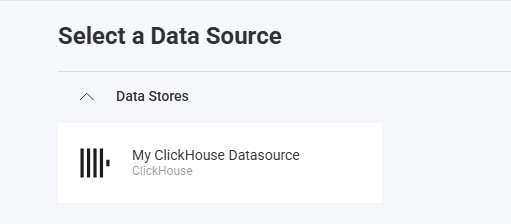
When the application runs, create a new Visualization and you will see the newly created ClickHouse data source listed in the "Select a Data Source" dialog.
Creating Data Source Items
Data source items represent specific datasets within your ClickHouse data source that users can select for visualization. On the client side, you only need to specify ID, title, and subtitle.
revealView.onDataSourcesRequested = (callback) => {
    // Create the data source
    const clickHouseDS = new RVClickHouseDataSource();
    clickHouseDS.title = "My ClickHouse Datasource";
    clickHouseDS.subtitle = "ClickHouse";

    // Create a data source item
    const clickHouseDSI = new RVClickHouseDataSourceItem(clickHouseDS);
    clickHouseDSI.id = "clickhouse_sales_data";
    clickHouseDSI.title = "My ClickHouse Datasource Item";
    clickHouseDSI.subtitle = "ClickHouse";

    callback(new RevealDataSources([clickHouseDS], [clickHouseDSI], false));
};
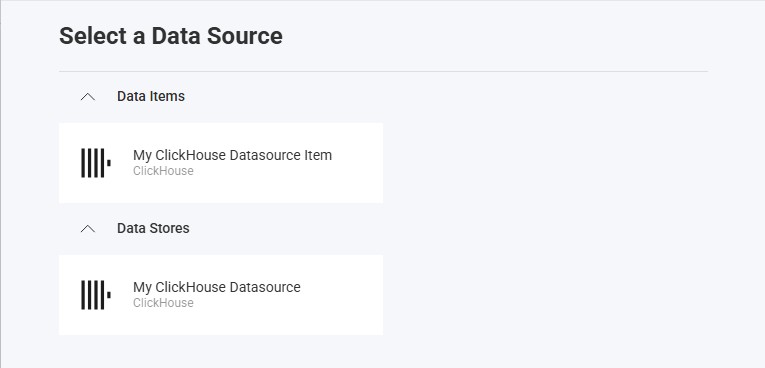
When the application runs, create a new Visualization and you will see the newly created ClickHouse data source items listed in the "Select a Data Source" dialog.
Additional Resources
API Reference
- ASP.NET
- Node.js
- RVClickHouseDataSource - Represents a ClickHouse data source
- RVClickHouseDataSourceItem - Represents a ClickHouse data source item
- RVClickHouseDataSource - Represents a ClickHouse data source
- RVClickHouseDataSourceItem - Represents a ClickHouse data source item